Senin, 21 Agustus 2017

How to instal Apache 2

By: 

Justin Ellingwood

 Subscribe

5

Mark as Complete

 How To Install the Apache Web Server on Ubuntu 16.04PostedMay 26, 2017 58.6kviews APACHEUBUNTU UBUNTU 16.04

Introduction

The Apache HTTP server is the most widely-used web server in the world. It provides many powerful features including dynamically loadable modules, robust media support, and extensive integration with other popular software.

In this guide, we'll discuss how to install an Apache web server on your Ubuntu 16.04 server.

Prerequisites

Before you begin this guide, you should have a regular, non-root user with sudo privileges configured on your server. Additionally, you will need to configure a basic firewall to block non-essential ports. You can learn how to configure a regular user account and set up a firewall for your server by following ourinitial server setup guide for Ubuntu 16.04.

When you have an account available, log in as your non-root user to begin.

Step 1: Install Apache

Apache is available within Ubuntu's default software repositories, so we will install it using conventional package management tools.

We will begin by updating the local package index to reflect the latest upstream changes. Afterwards, we can install the apache2package:

sudo apt-get update sudo apt-get install apache2

After confirming the installation, apt-getwill install Apache and all required dependencies.

Step 2: Adjust the Firewall

Before we can test Apache, we need to modify our firewall to allow outside access to the default web ports. Assuming that you followed the instructions in the prerequisites, you should have a UFW firewall configured to restrict access to your server.

During installation, Apache registers itself with UFW to provide a few application profiles. We can use these profiles to simplify the process of enabling or disabling access to Apache through our firewall.

We can list the ufw application profiles by typing:

sudo ufw app list

You should get a listing of the application profiles:

Output

Available applications: Apache Apache Full Apache Secure OpenSSH

As you can see, there are three profiles available for Apache:

Apache: This profile opens only port 80 (normal, unencrypted web traffic)Apache Full: This profile opens both port 80 (normal, unencrypted web traffic) and port 443 (TLS/SSL encrypted traffic)Apache Secure: This profile opens only port 443 (TLS/SSL encrypted traffic)

For our purposes, we will allow incoming traffic for the Apache Full profile by typing:

sudo ufw allow 'Apache Full'

You can verify the change by typing:

sudo ufw status

You should see HTTP traffic allowed in the displayed output:

Output

Status: active To Action From -- ------ ---- OpenSSH ALLOW Anywhere Apache Full ALLOW Anywhere OpenSSH (v6) ALLOW Anywhere (v6) Apache Full (v6) ALLOW Anywhere (v6)

As you can see, the profile has been activated to allow access to the web server.

Step 3: Check your Web Server

At the end of the installation process, Ubuntu 16.04 starts Apache. The web server should already be up and running.

We can check with the systemd init system to make sure the service is running by typing:

sudo systemctl status apache2

Output

● apache2.service - LSB: Apache2 web server Loaded: loaded (/etc/init.d/apache2; bad; vendor preset: enabled) Drop-In: /lib/systemd/system/apache2.service.d └─apache2-systemd.conf Active: active (running) since Fri 2017-05-19 18:30:10 UTC; 1h 5min ago Docs: man:systemd-sysv-generator(8) Process: 4336 ExecStop=/etc/init.d/apache2 stop (code=exited, status=0/SUCCESS) Process: 4359 ExecStart=/etc/init.d/apache2 start (code=exited, status=0/SUCCESS) Tasks: 55 Memory: 2.3M CPU: 4.094s CGroup: /system.slice/apache2.service ├─4374 /usr/sbin/apache2 -k start ├─4377 /usr/sbin/apache2 -k start └─4378 /usr/sbin/apache2 -k start May 19 18:30:09 ubuntu-512mb-nyc3-01 systemd[1]: Stopped LSB: Apache2 web server. May 19 18:30:09 ubuntu-512mb-nyc3-01 systemd[1]: Starting LSB: Apache2 web server... May 19 18:30:09 ubuntu-512mb-nyc3-01 apache2[4359]: * Starting Apache httpd web server apache2 May 19 18:30:09 ubuntu-512mb-nyc3-01 apache2[4359]: AH00558: apache2: Could not reliably determine the server's fully qualified domain name, using 127.0.1.1. Set the 'ServerName' directive globally to suppress this message May 19 18:30:10 ubuntu-512mb-nyc3-01 apache2[4359]: * May 19 18:30:10 ubuntu-512mb-nyc3-01 systemd[1]: Started LSB: Apache2 web server.

As you can see above, the service appears to have started successfully. However, the best way to test this is to actually request a page from Apache.

You can access the default Apache landing page to confirm that the software is running properly. You can access this through your server's domain name or IP address.

If you are using DigitalOcean and do not have a domain name set up for your server, you can follow our guide how to set up a domain with DigitalOcean to set one up.

If you do not want to set up a domain name for your server, you can use your server's public IP address. If you do not know your server's IP address, you can get it a few different ways from the command line.

Try typing this at your server's command prompt:

hostname -I

You will get back a few addresses separated by spaces. You can try each in your web browser to see if they work.

An alternative is typing this, which should give you your public IP address as seen from another location on the internet:

sudo apt-get install curl curl -4 icanhazip.com

When you have your server's IP address or domain, enter it into your browser's address bar:

http://server_domain_or_IP

You should see the default Ubuntu 16.04 Apache web page, which should look something like this:
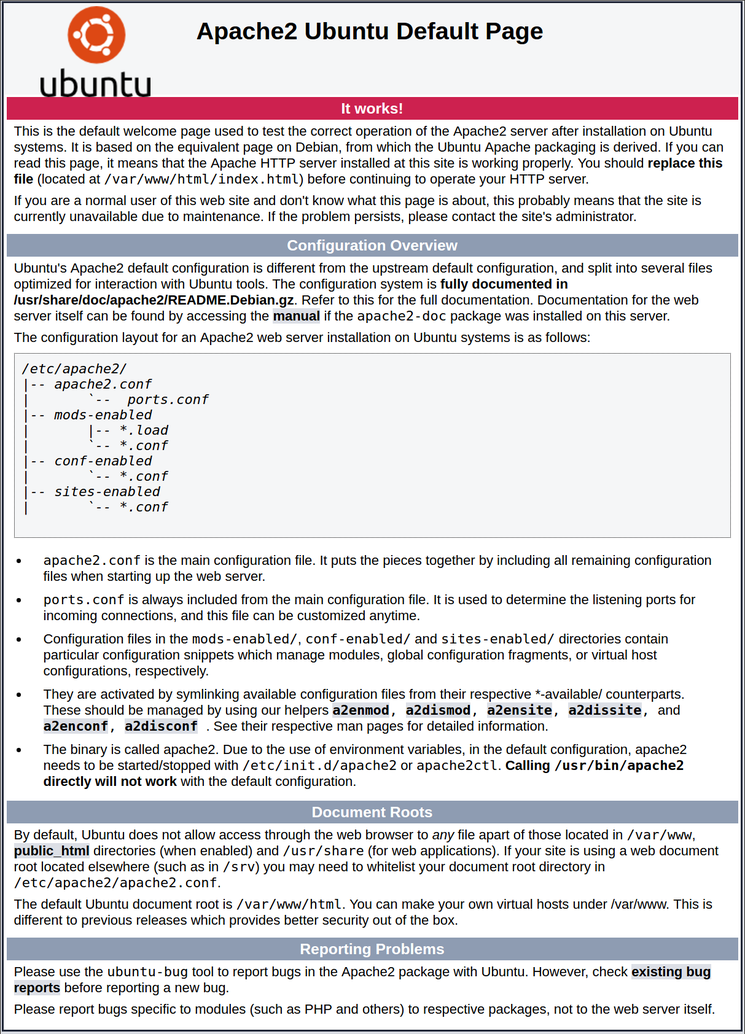
This page is simply included to show that Apache is working correctly. It also includes some basic information about important Apache files and directory locations.

Step 4: Manage the Apache Process

Now that you have your web server up and running, we can go over some basic management commands.

To stop your web server, you can type:

sudo systemctl stop apache2

To start the web server when it is stopped, type:

sudo systemctl start apache2

To stop and then start the service again, type:

sudo systemctl restart apache2

If you are simply making configuration changes, Apache can often reload without dropping connections. To do this, you can use this command:

sudo systemctl reload apache2

By default, Apache is configured to start automatically when the server boots. If this is not what you want, you can disable this behavior by typing:

sudo systemctl disable apache2

To re-enable the service to start up at boot, you can type:

sudo systemctl enable apache2

Apache should now start automatically when the server boots again.

Step 5: Get Familiar with Important Apache Files and Directories

Now that you know how to manage the service itself, you should take a few minutes to familiarize yourself with a few important directories and files.

Content

/var/www/html: The actual web content, which by default only consists of the default Apache page you saw earlier, is served out of the /var/www/html directory. This can be changed by altering Apache configuration files.

Server Configuration

/etc/apache2: The Apache configuration directory. All of the Apache configuration files reside here./etc/apache2/apache2.conf: The main Apache configuration file. This can be modified to make changes to the Apache global configuration. This file is responsible for loading many of the other files in the configuration directory./etc/apache2/ports.conf: This file specifies the ports that Apache will listen on. By default, Apache listens on port 80 and additionally listens on port 443 when a module providing SSL capabilities is enabled./etc/apache2/sites-available/: The directory where per-site "Virtual Hosts" can be stored. Apache will not use the configuration files found in this directory unless they are linked to the sites-enabled directory (see below). Typically, all server block configuration is done in this directory, and then enabled by linking to the other directory with the a2ensitecommand./etc/apache2/sites-enabled/: The directory where enabled per-site "Virtual Hosts" are stored. Typically, these are created by linking to configuration files found in the sites-available directory with the a2ensite. Apache reads the configuration files and links found in this directory when it starts or reloads to compile a complete configuration./etc/apache2/conf-available/,/etc/apache2/conf-enabled/: These directories have the same relationship as the sites-available and sites-enabled directories, but are used to store configuration fragments that do not belong in a Virtual Host. Files in the conf-available directory can be enabled with the a2enconf command and disabled with the a2disconf command./etc/apache2/mods-available/,/etc/apache2/mods-enabled/: These directories contain the available and enabled modules, respectively. Files in ending in .load contain fragments to load specific modules, while files ending in.conf contain the configuration for those modules. Modules can be enabled and disabled using the a2enmod and a2dismodcommand.

Server Logs

/var/log/apache2/access.log: By default, every request to your web server is recorded in this log file unless Apache is configured to do otherwise./var/log/apache2/error.log: By default, all errors are recorded in this file. The LogLevel directive in the Apache configuration specifies how much detail the error logs will contain.

Conclusion

Now that you have your web server installed, you have many options for the type of content to serve and the technologies you want to use to create a richer experience.

Learn how to use Apache Virtual Hosts here. If you'd like to build out a more complete application stack, check out this article onhow to configure a LAMP stack on Ubuntu 16.04.

Selasa, 15 Agustus 2017


KONFIGURASI LAMP PADA DEBAN SERVER


IMG_256


PENDAHULUAN

LAMP adalah istilah yang merupakan singkatan dari Linux, Apache, MySQL dan Perl/PHP/Phyton. Merupakan sebuah paket perangkat lunak bebas yang digunakan untuk menjalankan sebuah aplikasi secara lengkap.  


LATAR BELAKANG

dibuatnya materi ini dikarenakan banyak sekali orang yang tidak tau apa itu LAMP dan banyak sekali orang yang tidak tau cara konfigurasi LAMP  


MAKSUD DAN TUJUAN

supaya rekan rekan yang membaca bisa lebih mengetahui tentang konfigurasi lamp di debian server 

ALAT DAN BAHAN

koneksi internet 

laptop / komputer 

server 


LANGKAH - LANGKAH PENGINSTALLAN

langkah pertama untuk menginstal lamp 

IMG_257


setelah ituu tunggulah beberapa saat , nah setelah proses nya udah selesai 

kita masuk tahap instalasi yang kedua 

IMG_258


Untuk mengetahui PHP-extention apa saja yang sudah terinstall kita buat file baru pada folder root server :


IMG_259


masukanlah teks dibawah ini 

<?php
phpinfo();
?>

contoh gambar :


IMG_260


setelah itu cek di browser 

cara cek nya masukan ip kamu contoh 


192.168.73.3

IMG_261


jika masuk seerti tampilan di atas berarti install apache2 nya udah benar 

setelah itu kita install mariadb server 

dengan cara :

IMG_262


setelah itu akan ada muncul tampilan seperti dibawah ini , tampilan dibawah ini yaitu memerintahkan kepada kita untuk memasukan password


IMG_263


setelah ada masukan password , kemudian anda mengonfirmasi password anda 


IMG_264


taha selanjut nya 


IMG_265


setelah instalasi mariadb sudah selesai, kemudian install phpmyadmin

 dengan cara :

IMG_266


setelah anda memasukan teks di atas maka akan muncul tampilan seperti di bawah ini , kemudian anda pilihlah apache2 , kemudian tekan enter 


IMG_267


 setelah itu tekan yes seperti gambar dibawah


IMG_268


setelah itu masukan password , saya sarankan gunakanlah password yang mudah di ingat 


IMG_269


masukan kembali password 


IMG_270


konfirmasi parrword anda


IMG_271


setelah itu cek di browser dengan cara : ip kamu/phpmyadmin/


contoh 192.168.73.3/phpmyadmin/


IMG_272


SELESAI ....

Senin, 31 Juli 2017


How to UBL (unlock boot loader ) and LBL (lock boot loader)

Your mi device

Before we talk about how to unlock mi device we should have to know what its  bootloader ?

Bootloader  is a way to develope your device if its lock your development its more limited you don’t free to make your device tastier.

After that we shoud know what is the risk of unlock your bootloader

1.If you was unlock your bootloader you can modify your Firmware , but if the firmware didn’t match  it can make your device soft or hardbrick

2.lost IMEI

3.device id lost

4.security ware

5.eMMC damaged

After know all the risk of that DWYOR

Now unlock your devices

Don`t forget to enable usb debuging mode

Tap miui version 7x and activate developer option in addtional settings

1.visit http://en.miui.com/unlock then click unlock now


2.follow the steps then you can download software to unlock your device


Clik download mi unlock

3. instal and open mi unlock

4. you should login with registered mi account

5. reboot your device to fastboot mode by turn off and pres power and volume down at same time

6. wait until your device unlocked . and finish

Now how to lock again your device

1. Download adb

2. extrack the zip

3. clik the directory addres of the file and type cmd it will open comand prompt


4. connect your device via usb then enter fastboot mode

5. type “adb devie oem device-lock’’ and your device will lock again

6. end

Just that for this time thankyou


Selasa, 28 Februari 2017


Cerita saya  
Tahun lalu saya pergi ke rumah nenek saya pergi bersama bapak dan ibu serta 2 orang adik saya adik yang paling kecil berusia 7 tahun sedangkan adik yang satu berusia 13 tahun kami pergi kesana untuk menemui nenek dan menghabiskan sisa liburan sekolah kami berangkat pukul 08.00 malam dan kami sampai pukul 07.00 pagi kami mengahbiskan banyak waktu di jalan karena pada waktu itu libur akhir tahun sehingga jalanan macet sehigga mobil bergerak sangat lambat.
Sesampainya di rumah nenek kami tidak dapat masuk kerumah karena nenek sedang pergi keluar sehingga kami menunggu di mobil , kami menunggu sekitar 2 jam dan akhirnya nenek kami sampai di rumah dan kami berpelukan melepas rindu setelah 7 tahun tak bertemu . setelah kami selesai melepas rindu kami makan terlebih dahulu dan setelah makan kami berkeliling kampung bernostalgia dan melihat perubahan yang terjadi di sana , tidak terasa waktu sudah pukul 01.00 dan kami melanjutkan perjalanan ke pantai ci patujah dan itu menghabiskan waktu 2 jam perjalanan sehingga kami sampai pukul 03.00 sore sesampainya di pantai kami melepas lelah dengan langsung masuk ke air laut , adikku yang baru pertama kali melihat ombak sepertinya sedikit ketakutan dan hanya melihat di sisi pantai bersamaibu sedangkan aku dengan adik yang besar asik bermain air laut setelah cukup lama kai mulai merasa lapar dan kami pergi ke warung makan dan makan ikan bakar di sana . 
Tidak terasa waktu sudah mulai sore sehingga kami kembali kerumah nenek untuk berpamitan kepada nenek dan kami pulang pukul 05.00 sore tapi kami di suguhi pemandangan tidak menyenangkan yitu maceet sehingga kami tertidur pulas dan kami baru sadar bahwa kami telah sampai di rumah pukul 04.00 subuh 
Sungguh pengalaman berlibur yang sangat menyenangkan dan kami ingin kembali lagi ke sana jiga kami punya waktu dan kembali mengabiskan waktu disana  
My history
Last year i go to my grandmother house i went with my father and my mother and 2 younger brother the youngest brother is 7 years old and which one is 13 years old we went there to meet my grandmother and spend school holiday we depart at 08.00 am and we on there at 07.00 pm we spend a lot of time in te way cause that time is end year holiday then traffic jam so our car move slowly 
When we got to grandmother house wouse we can`t got in to house cause my granmother is running out so we wait in the car wewait until 2 hours and at last our grandmother is come to house 
 we cuddle up to do after seven years no see. after we finished up to do we eat first and after our meal around the village to reminisce and see the changes happening there, do not feel the time is at 01.00 and we went on a trip to the beach ci patujah and it spent a 2 hour drive so we got 03.00 afternoon when they arrived at the beach we unwind with a direct entrance to the sea, my sister who first saw the waves seemed a little frightened and just look at the beach side bersamaibu while I was with sister big cool to play sea water after a long kai began to feel hungry and we go to the diner and eat grilled fish there. Did not feel the time is getting late so we returned home to say goodbye to his grandmother's grandmother and we went home at 05.00 pm but our suguhi unpleasant sights yitu maceet so we fell asleep and we realized that we had got home at 04.00 dawn It was a very pleasant holiday experience and we want to go back there in the finals if we have time and again spend their time there

Minggu, 26 Februari 2017

pengalaman

Assalamualaikum wr.wb
Oke guys kali ini deka bakal berbagi sedikit pengalaman sama kalian tentang ngerakit komputer disekolah deka yaitu di smk al falah tanjungjaya karena kebetulan sekolah deka berbasis industri dan bermitra dengan AXIOO jadi kita bisa ngerakit sendiri laptop nya., ya kalo jadi kita bisa bwa pulang laptopnya tapi kalo ngerakitnya gagal kita harus ngulangin lagi sampe berhasil dan nyala guys
Tapi guys ngerakit laptop itu gampang gampang susah guys soalnya kita harus rakit laptopnya dari 50% maksudnya laptop itu sebetulnya udah di pasang sebagian casing nya udah di pasang tapi kita harus bingkar lagi, nah kebetulan laptop yang deka rakit itu seri NEON TNH jadi mother processornya udah di tempel permanent guys kita tinggal pasang hardisc ram  sama lancard aja sama nyambungin kabel gitu .
Nah deka itu sama 5 temen deka ngerakitnya duluan alias ‘’nyolong start ‘’ kenapa karena deka bakal jadi tutor ngebantuin mas taufiq, mas irvan ,sama bang dede buat jadi tutor 26 murid sekelas deka .
Oke kita mulai  aja guys ceritanya
Petama tama kita disuruh pake perlengkapan yaitu
JAS ANTI STATIS. jas nya licin bro fungsinya buat nahan listrik statis biar gak loncat ke komponen
SHOE COVER fungsinya sama kaya jas guys cuman di pakenya di  kaki
MASKER masa gak tau fungsinya
GELANG ANTI STATIS sama aja fungsinya guys
Kemudian kita di kasih tool box yang di dalemnya itu ada obeng , pick  , sama fingger cloth

Setelah itu kita baru ditunjukin cara ngerakitnya guys sama mr.nanang ( nama samaran ) kita disuruh liatin dulu baru setelah itu kita di surah praktekin sendiri
Pertama tama kita disuruh buka frame LCD jujur deka paling gak suka bagian ini soalnya takut patah guys nah setelah itu kita di suruh buka LCDnya guys dan itu harus pake fingger cloth biar gak ninggalin sidik jari di  LCD abis itu kita disuruh masang LVDS  dan di bagian sini banyak yang gagal guys akibatnya lcd gak display dan harus bongkar  lagi huhuhu kacian
Terus kita di suruh pasang modul kamera biar bisa selfie guys                                                             
Nah kalo itu udah kita benerin kabelnya di jalurnya nah terus kita pasang lagi framenya guys
Nah ludah itu kita disuruh Chase dan masam motherboard gampang sih gus cuma lamanya itu kita harus dengerin tutor Why... kalor Gag didengerin dulu kita bisa dimarahin gus wuhh
Singkat kata akhirnya deka selesai tuh ... dan tibalah saat yang paling menegangkan oh iya bantalan testing guys oeii degdean banget guys dan laptop dek Gag nyala hahahah wuhh dek bingung guys akhirnya dek Nanya sama Mr taufiq Emh dek disuruh bongkar lagi guys Frame LCD  Nya harus di buka dan ternnyata LVDS Nya Gak kenceng guys
Dan di testing yang kedua akhrnya laptop deka nyala Alhamdulillah dek Seneng bangget  tapi deka harus setting BIOS dulu baru laptop itu bisa nyala guys .. 
Tapi perjalanan deka belum berakhir deka harus jadi tutor temen Deka dan semuanya berjalan lancar tapi ada satu hal deka pulang pukul 6 sore bro uh capeknya guys
Tapi semua itu terbayar karena setelah sekian lama dek punya laptop sendiri
Oke mau Tau rasanya rakit laptop sendiri makanya gabung sama axioo classs program
Sekian dari deka semoga bermafaat ya
Wassalam lakum wr.wb


Kamis, 23 Februari 2017

cara membagi host id

Assalamualaikum wr.wb
Oke gus kali ini deka bakal bikin postingan yang kayaknya penting Gak yah... hahaha
Oke kita bakal belajar cara subnet untuk 2 buah Networks
Contoh kita punya alamat tip kelas c IP Nya kita ngarang Aja ya
Contoh 192.168.0/25
Nah langkah petama kita bikin ip nya ke decimal kenapa karena itu belum decimal yang SESUNGGUHYA karena ada slashnya ,kita bisa liat di tabel subnet  jaringan di bawah guys
Oke kita liat angka setelah slashnya guys kita pake /25 berarti netmask kita adalah 255.255.255.128
Oke sekarang kita udah tau netmasknya jadi sekarang tinggal kita bagi net addresnya karena kita akan membuat 2 jaringan saja maka tinggal kita bagi 255 menjadi dan angka terakhir dari bilangan tersebut kita jadikan broadcast id
Jadi hasinya adalah sbb
Net addres pertama : 192.168.0.0
IP host awal : 192.168.0.1
IP host akhir : 192.168.0.126
Broadcast id : 192.168.1.128
Net Addres kedua : 192.168.0.128
Ip host awal : 192.168.0.129
Ip host akhir : 192.168.0.254
Broadcast id  : 192.168.0.255
Jadi guys dari hasil di atas kita bisa tahu kalo ternyata ip tersebut menghailkan 2 network dan dapat menghasilkan maximal host sebanyak 254
Inget lho 2 buah network ini tidak bisa saling berhubungan karena tidak memiliki client id sehingga tidak dapat saling berhubugan
Oke guys itu aja untuk kali ini terima kasih kslo mau lebih jela lahi tinggal tulis di comment  aja ya guys
Wassalamualaikum wr.wb


Rabu, 22 Februari 2017

Introduce

asaaalamu alaikum wr.wb
 oke guys di postingan kali ini deka bakal ngenalin my self
name ane  deki hamdani panggil aja deka , deka sekolah di smk al falah tanjungjaya
deka baru kelas 10 tapi umur deka udah 17 tahun
deka orang sunda asli
deka lahir di tasikmalya 01 january 2000 tanggal lahir deka unik kan hehehe
tujuan deka buat blog ini selain buat tugas juga sebagai ajang share ilmu guys

oke untuk kali ini cukup segitu aja guys kalo yang pengen nanya lebih lengkap tinggal comen aja di bawah
makasih guys
wassalamu alaikum wr.wb